
DAW guide
Ableton Live
PluginPie uses the included PluginPie Control Surface script to insert
plug-ins, devices, and presets in Ableton. The in-app setup guide installs the script and walks
you through enabling it in Live.
Open the in-app setup guide
PluginPie includes a guided Ableton setup as part of its first-run experience. It can install or update the Control Surface for you, and then show exactly where to enable it in Ableton.
To reopen the guide later, open PluginPie Settings, select Ableton Live, and choose Open Ableton Live Setup Guide.
Install the Control Surface
- Quit Ableton Live completely.
- Open the Ableton setup guide in PluginPie and choose Export PluginPie Control Surface.
-
In the folder picker, select Ableton Live's
User Libraryfolder.-
macOS:
~/Music/Ableton/User Library -
Windows:
%USERPROFILE%\Documents\Ableton\User Library -
Windows OneDrive:
%USERPROFILE%\OneDrive\Documents\Ableton\User Library
-
macOS:
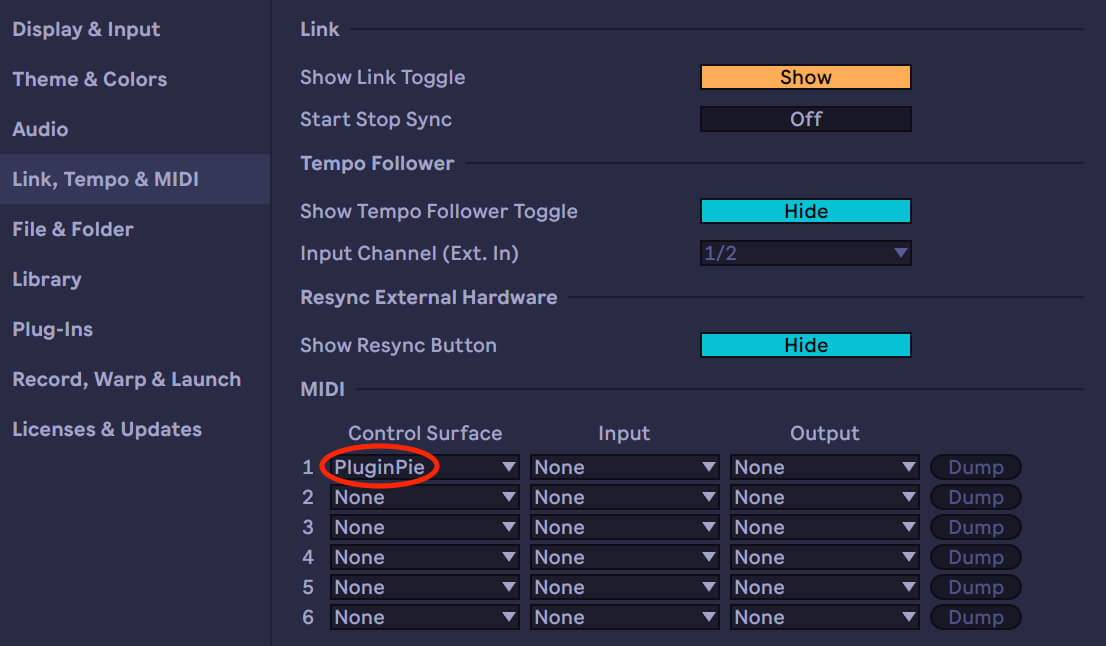
- Launch Ableton and open Settings/Preferences → Link, Tempo & MIDI. In an unused Control Surface row, choose PluginPie and leave both Input and Output set to None.
Configure PluginPie
- Open PluginPie Settings.
- Select Ableton Live as the DAW.
-
Leave Window Title Hint as
Ableton Liveunless your Ableton window does not contain that text. - Choose an Insert position, then save the settings.
| End of chain | Inserted devices are loaded at the end of the selected track's device chain. |
|---|---|
| After selected device | Inserted devices are loaded immediately to the right of the currently selected device in Ableton. |
Adding plug-ins
In the top-right corner of the PluginPie Editor, choose + Add Plug-in
Entry fields
| Name | The name shown in PluginPie. When Search Alias is empty, PluginPie uses this value to find the device in Ableton. |
|---|---|
| Search Alias | Optional alternate lookup text. When this field has a value, PluginPie uses it instead of Name to search. |
| Vendor | Optional. Use the vendor shown in Ableton to narrow the results when multiple items have the same name. |
Using an alias
Leave Search Alias empty for a normal Name lookup. Add an alias only when the plug-in label in Ableton differs from the name you want shown in PluginPie.
Device Type
Use this setting to enforce a particular device format.
| Auto-detect | PluginPie infers type and format from the browser path and Ableton's item properties. |
|---|---|
| Native | Ableton Instruments, Audio Effects, or MIDI Effects. |
| Max for Live | Max for Live Devices. Searches installed devices and .amxd devices in User Library. |
| VST2 | Steinberg VST2 plug-in format. |
| VST3 | Steinberg VST3 plug-in format. |
| AU | Apple Audio Unit plug-in format. |
| Preset | A loadable preset indexed from the User Library. |
Insert a device
- In Ableton, select the destination track.
- If Insert position is set to After selected device, select the device that should sit immediately before the device you're inserting.
- Open your Pie and select a device
PluginPie waits for the loader's response. A timeout usually means the Control Surface is not active or Ableton's main thread could not complete the request.
PluginPie communicates with the Control Surface over localhost
UDP. Ableton listens for requests on port 39051 by
default.
Troubleshooting Ableton Live
PluginPie does not appear in Ableton control surface dropdown
Confirm the script is located in
User Library/Remote Scripts/PluginPie/PluginPie.py with
this exact folder structure. Restart Ableton.
UDP port unavailable
In rare cases, unrelated software may already be using Ableton's
default request port 39051. You can manually choose a
different port in the installed Remote Script.
- Quit Ableton Live and PluginPie.
-
Open
User Library/Remote Scripts/PluginPie/PluginPie.pyin a text editor. -
Near the top of the file, change the PORT value to an unused UDP port from
1through65535.Example:
PORT = 39052 - Save the file, then reopen Ableton and PluginPie.
The wrong matching item is inserted
When multiple items match, PluginPie uses the first result. Edit the entry and specify Vendor and Device Type to narrow the results.
Error: not found
Double check the spelling. Try typing the name into the Ableton browser and copying over the working search term that locates the device.
If Ableton scanned a new plug-in or you saved a new preset after Ableton started, choose Refresh & retry in the PluginPie error overlay. PluginPie refreshes the relevant parts of Ableton's device index, then retries the insertion once.
If this action is unavailable or Ableton reports that refresh is unsupported, reopen the PluginPie Ableton setup guide, export the latest Control Surface, and restart Ableton.