
DAW guide
Studio Pro and Studio One
PluginPie uses the included PluginPie External Device for inserting plug-ins, chains, and devices
in Fender Studio Pro and PreSonus Studio One. The in-app setup guide
installs it and shows where to enable it under External
Devices.
Open the in-app setup guide
PluginPie includes a guided setup for Studio Pro/One as part of its first-run experience. It installs or updates the External Device and shows where to enable it in Studio Pro/One.
To reopen the guide later, open PluginPie Settings, select Fender Studio Pro or PreSonus Studio One, then choose Open Studio Pro/One Setup Guide.
Install the PluginPie Device
- Close Studio Pro/One completely.
- Open the setup guide in PluginPie and choose Export PluginPie Device.
-
In the folder picker, select the DAW's version folder. For
example, select
Studio Pro 8orStudio One 7. PluginPie exports the device script toUser Devices/PluginPie.
| Studio Pro — macOS |
~/Library/Application Support/Fender/Studio Pro
                    <version>
|
|---|---|
| Studio Pro — Windows | %APPDATA%\Fender\Studio Pro <version> |
| Studio One — macOS |
~/Library/Application Support/PreSonus/Studio One
                    <version>
|
| Studio One — Windows | %APPDATA%\PreSonus\Studio One <version> |
Add PluginPie as an External Device
- Reopen Studio Pro/One.
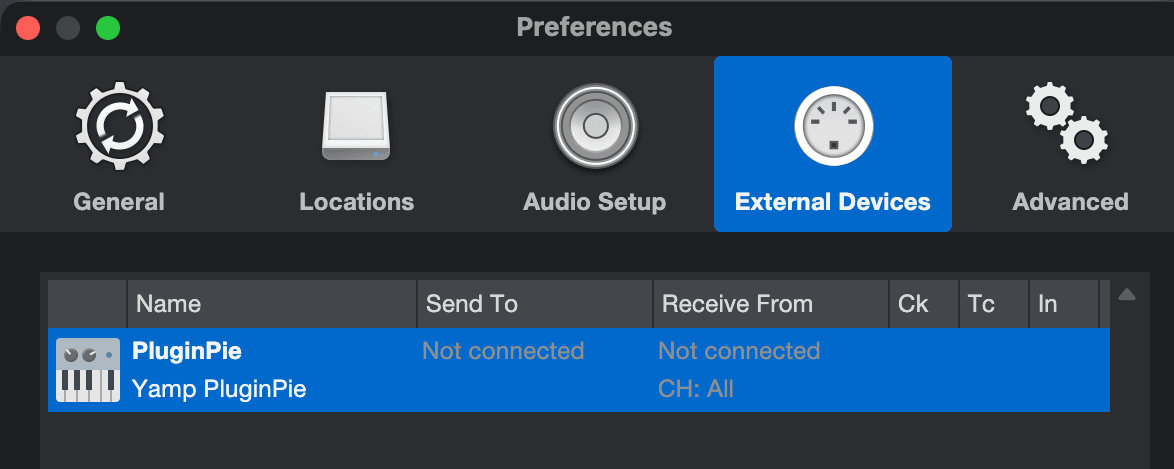
- Open Preferences → External Devices.
- Choose Add….
- Scroll to the bottom of the device list, expand the Yamp folder, select PluginPie, and choose OK.
- Verify that PluginPie appears in the External Devices list.
Adding plug-ins
In the top-right corner of the PluginPie Editor, choose + Add Plug-in.
Entry fields
| Name | The name shown in PluginPie. When Search Alias is empty, PluginPie uses this value to find the device in Studio Pro/One. |
|---|---|
| Search Alias | Optional alternate lookup text. When this field has a value, PluginPie uses it instead of Name to search. |
| Vendor | Optional. Use the vendor shown in Studio Pro/One to narrow the results when multiple items have the same name. |
Using an alias
Leave Search Alias empty for a normal Name lookup. Add an alias only when the plug-in label in Studio Pro/One differs from the name you want shown in PluginPie.
Device Type
Choose the format that matches the device or saved preset.
| Auto | Automatically determines plug-in type. |
|---|---|
| VST2 | Steinberg VST2 plug-in format. |
| VST3 | Steinberg VST3 plug-in format. |
| AU | Apple Audio Unit plug-in format. |
| CLAP | CLever Audio Plug-in format. |
| Native | A built-in Studio Pro or Studio One device. |
| FX Chain | A saved FX Chain preset. |
| Multi Instrument | A saved Multi Instrument preset. |
Insert a device
- In Studio Pro/One, select the destination channel(s).
- Open your Pie and select a device.
The type of device you choose affects the insertion behavior:
| Effect plug-in | Loads onto the selected channel(s). |
|---|---|
| Instrument plug-in | Creates a new Instrument and Instrument Track. |
| FX Chain | Loads the chain on selected channel(s). |
| Multi Instrument | Creates a new named Instrument Track and loads the saved Multi-Instrument preset. |
Select multiple channels
You can select multiple channels before inserting an effect plug-in or FX Chain. PluginPie loads it on every selected channel.
Troubleshooting
PluginPie does not appear when adding an External Device
Close the DAW, export the PluginPie Device again, and confirm you
selected the correct Studio Pro/One version folder. Verify that it now contains
User Devices/PluginPie, then reopen the DAW.
| Studio Pro — macOS |
~/Library/Application Support/Fender/Studio Pro<version>/User Devices/PluginPie
|
|---|---|
| Studio Pro — Windows | %APPDATA%\Fender\Studio Pro <version>\User Devices\PluginPie |
| Studio One — macOS |
~/Library/Application Support/PreSonus/Studio One<version>/User Devices/PluginPie
|
| Studio One — Windows | %APPDATA%\PreSonus\Studio One <version>\User Devices\PluginPie |
Plug-in lookup fails
Double check the spelling. An exact match is required.
Empty "Splitter" or "Multi-Instrument" devices keep getting inserted
These are default devices which insert when a lookup succeeds but the plug-in is not enabled. In Studio Pro/One, go to View → Plug-in Manager and verify that the desired device exists and is not hidden.