
DAW guide
FL Studio
PluginPie uses Accessibility to instantly insert plug-ins in FL Studio. Audio effects are added to the selected Mixer Track and instruments are added to the Channel Rack.
Adding plug-ins
In the top-right corner of the PluginPie Editor, choose + Add Plug-in
Entry fields
| Name | The name shown in PluginPie. When Search Alias is empty, PluginPie uses this value to find the device in FL Studio. |
|---|---|
| Search Alias | Optional alternate lookup text. When this field has a value, PluginPie uses it instead of Name to search. |
| Vendor | Optional metadata, has no effect on plug-in lookup. |
Using an alias
Leave Search Alias empty for a normal Name lookup. Add an alias only when the plug-in label in FL Studio differs from the name you want shown in PluginPie.
Insert a plug-in
PluginPie can insert only plug-ins that have been added to FL Studio's plug-in database and flagged as Favorites.
- Find the plug-in in the FL Studio Browser and right-click it.
- Choose Add to plugin database (flag as favorite).
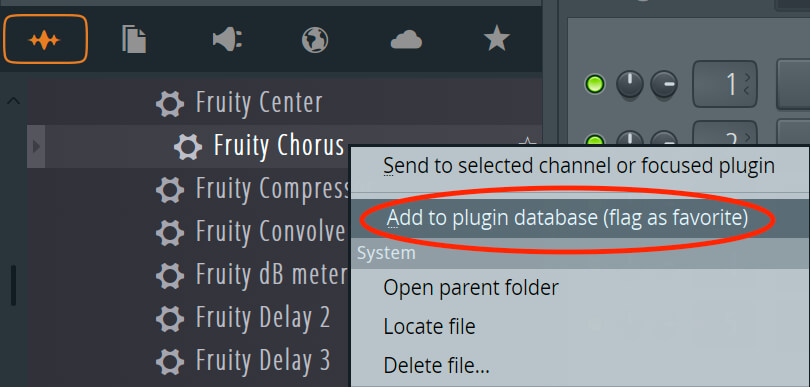
Once a plug-in is flagged in FL as favorite, it's ready to be loaded via PluginPie.
- Select the Mixer Track where you want to insert the plug-in.
- Open your Pie using its assigned hotkey and select a plug-in.
- The plug-in gets added in an empty slot on the selected Mixer Track.
Inserting an Instrument
Loading an instrument from PluginPie will automatically add the instrument to the Channel Rack.
Troubleshooting FL Studio
Plug-in not found
First confirm the plug-in is in FL Studio's plug-in database and flagged as a Favorite. Check if it appears in the Plugin Picker by pressing f8.
Alternatively, you can go to Options → Plugin Manager and verify that the plug-in is flagged with a star in the leftmost column.